Navigation menu
hello Guest

Instructor Manual
Pre-Assessment

Figure 6.1: Test set : Pre Assessment Modal Box with Pencil Icon and Title, Description, and Items box
You will get the following tabs:
Schedule Test
Schedule Test tab allows you to set Start Date, End Date, Time Zone, Prerequisite, and Password of test.

Figure 6.2: Schedule Test Tab of Pre-Assessment Settings
Test Setup tab allows you to set test duration, tries allowed and perform the following actions:
- Randomize Items: It allows you to randomize items in the Pre-Assessment.
- Randomize options: It allows you to randomize options of the questions.
- Pausing allowed: It allows the student to pause the Pre-Assessment in between.
- Set last option as “None of the above”: It allows student to select “None of the Above” option in the Pre-Assessment.

Figure 6.3: Test Setup Tab of Pre-Assessment Settings
Levelling
Levelling tab allows you to manage the visibility of the Lessons and Post Assessments on the basis of readiness score.

Figure 6.4: Pre-Assessment Settings Modal Box with Levelling Tab
To do the required settings in Score (%), Lesson, or Post Assessment, click the Enable button at the bottom.
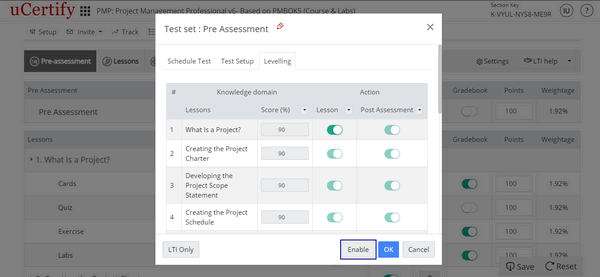
Figure 6.5: Pre-Assessment Levelling Modal Box with Enable Button
To set the readiness percentage for every lesson, click drop-down next to the >Score (%) option. Enter the desired readiness percentage and click the OK button.
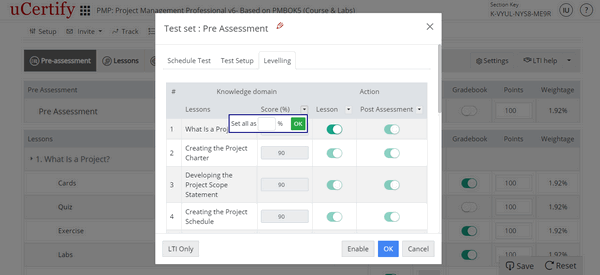
Figure 6.6: Pre-Assessment Levelling Modal Box with >Score(%) Drop-down
To turn Off or On the visibility of entire accessibility of every lesson or questions of a lesson in the Post Assessment, click the Lesson or Post Assessment drop-down, and select the desired option.
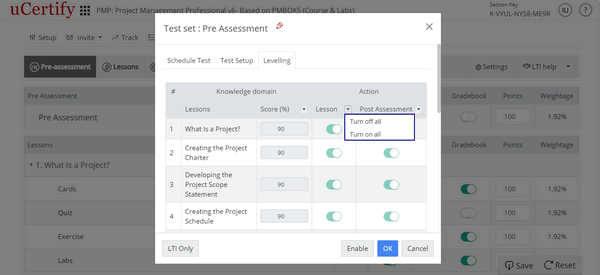
Figure 6.7: Pre-Assessment Levelling Modal Box with Lesson Drop-down
To turn Off or On the visibility of entire accessibility of every lesson or questions of a lesson in the Post Assessment, click the Lesson or Post Assessment drop-down and select the desired option.
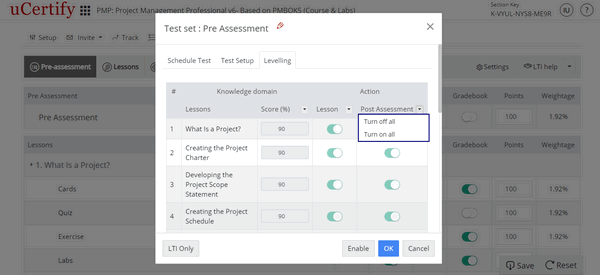
Figure 6.8: Pre-Assessment Levelling Modal Box with Post Assessment Drop-down
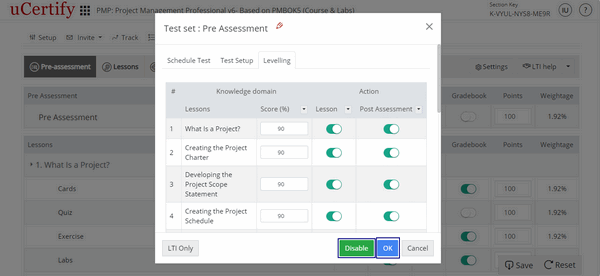
Figure 6.9: Pre-Assessment Levelling Modal Box with Disable and OK Button
- Items represents the number of items in the particular grade item.
- To hide desired grade items or chapters, under the Visibility option, click the On or Off button.
- To edit settings of the grade items or chapters, click the settings menu next to the desired grade item or chapter.
- The Points option represent the summative evaluation of a student’s performance across a grade item tracked in the Gradebook. Enter the Points parallel to the grade item.
- The Weightage option is based on the Points assigned in the Gradebook.
- To include or exclude grades of a particular item in the gradebook and sync, click the On or Off button, under the Report option, parallel to the grade item.
- To include or exclude grades of a particular item from the final grade calculation, click the On or Off button, under the Graded option, parallel to the grade item.
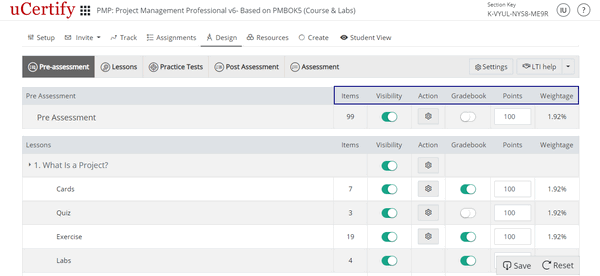
Figure 6.10: Design Tab with Options to Manage the Grade Items